
 Quick Quote



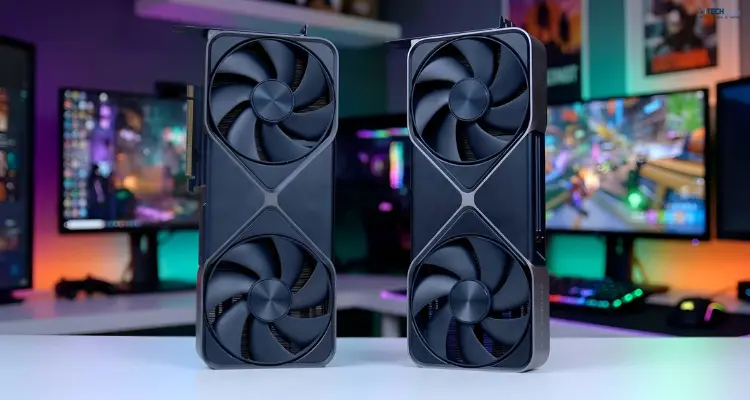
Choosing a graphics card is harder than it looks. Two cards can share a name and perform differently. A card with lots of VRAM can still be slow. And the "best" GPU on a review chart may not fit in your case or run on your power supply.
This guide gives you a simple order of decisions. Work through it from top to bottom and you'll end up with a shortlist that fits your screen, your games, your PC and your budget.
The iTech Devices team built it around the questions buyers ask most. Each step ends with a decision, so by the end you'll know your resolution target, VRAM range, power requirements and size limits. Use those to filter any list of graphics cards, whether you're browsing our store or another retailer.
How to Choose a GPUs
- Decide what you'll use the GPU for (gaming, creative work, 3D rendering or AI).
- Note your monitor's resolution and refresh rate.
- Set a realistic budget.
- Match VRAM to your resolution and workload.
- Compare Nvidia, AMD and Intel by the features you'll actually use.
- Check benchmarks for the games or apps you run.
- Confirm your power supply (PSU) can handle the card.
- Measure your case so the card physically fits.
The rest of this guide explains each step.
Step 1: Start With What You'll Use the GPU For
The GPU (graphics processing unit) is the part of your PC that renders images. Your workload decides how much GPU you need.
- Gaming: Frame rate, resolution and visual settings matter most.
- Video editing and creative work: Encoding support, VRAM and software compatibility matter more than raw FPS.
- 3D rendering: Rendering engines like Blender's Cycles benefit from strong GPU compute and plenty of VRAM.
- AI and machine learning: VRAM capacity and software support (especially CUDA on Nvidia) often decide what you can run at all.
Most people buy for gaming, so the steps below lean that way. Creative and AI users get their own section later.
Step 2: Match the GPU to Your Monitor's Resolution and Refresh Rate
This is the most important step, and it's the one people skip. Your monitor sets the ceiling for what a GPU needs to do.
Resolution is the number of pixels on screen. More pixels means more work for the card.
- 1080p (1920×1080): The lightest load. Entry-level and mid-range cards handle it well.
- 1440p (2560×1440): The sweet spot for many gamers. It looks noticeably sharper than 1080p and needs a mid-range to upper-mid-range card.
- 4K (3840×2160): Roughly four times the pixels of 1080p. It needs a high-end card, or a mid-range card with upscaling turned on.
Refresh rate is how many times per second your monitor updates, measured in Hz. A 60Hz monitor can't show more than 60 frames per second, so a card that pushes 200 FPS is wasted on it. A 144Hz or 240Hz monitor rewards a faster card, especially in competitive shooters.
A simple way to think about it: pick your target, such as "1440p at 144 FPS in the games I play," then look for cards that hit that target in benchmarks.
Step 3: Set Your Budget First, Then Look for Value
Set a firm price ceiling before you browse. Otherwise it's easy to drift upward, one "just a bit more" at a time.
Look for price-to-performance, not the cheapest or the fastest card. Ask what you get per dollar at your target resolution. The most expensive card can be a poor value if your monitor can't use its power. The cheapest can cost more in the long run if it struggles with new games within a year or two.
GPU prices move with supply, demand and new launches, so check current prices from a few retailers before you buy. If you want a reliable tool, use a price tracker and compare the total cost, including shipping and any bundled games.
Step 4: How Much VRAM Do You Need?
VRAM (video memory) stores textures, frame buffers and other data the GPU needs right now. When a game needs more VRAM than your card has, performance drops, textures may load late or look blurry, and you may stutter.
Common guidance for gaming looks like this:
Treat these as starting points, not strict rules. Actual usage depends on the game, texture quality, ray tracing and whether you use mods.
Why 8 GB is getting tight: Many recent games can use more than 8 GB at high texture settings, even at 1080p. An 8 GB card still works, but you may need to lower texture quality in some titles. If you want to keep a card for several years, 12 GB is a safer floor.
More VRAM doesn't mean a faster card. VRAM only helps when a game would otherwise run out of it. A weak GPU with a large memory pool won't outrun a stronger GPU with less memory. Compare VRAM and raw performance together.
Is 12 GB or 16 GB better? If you play at 1440p with high settings and plan to keep the card for years, 16 GB gives more room. If you mostly play at 1080p or medium-to-high 1440p, 12 GB is usually enough, and the money saved may buy a faster GPU.
Step 5: Nvidia vs AMD vs Intel
There are three main GPU makers. Each has strengths.
Nvidia GeForce (RTX)
Nvidia is known for ray tracing performance and DLSS, its AI-based upscaling and frame generation technology. Its CUDA platform is also widely supported in creative and AI software, which is why many video editors, 3D artists and machine learning users prefer it.
Newer RTX 50-series cards support DLSS 4, including multi-frame generation, though that feature only applies in games that support it.
AMD Radeon (RX)
AMD often competes on VRAM and raw rasterization performance for the price. Its upscaling tech is FSR (FidelityFX Super Resolution), and newer Radeon RX 9000-series cards support FSR 4. AMD's cards are a strong pick if you mostly play games and want good performance per dollar. Ray tracing has improved in recent generations, but check benchmarks if you care about it.
Intel Arc
Intel Arc focuses on budget-friendly pricing and has a good reputation for media encoding. The Arc B580, for example, offers 12 GB of VRAM at a budget price. Drivers have matured a lot, but performance can still vary more from game to game than with Nvidia or AMD, especially in older titles. Arc cards also need Resizable BAR enabled in your motherboard to perform well, so check that your system supports it.
Which one should you pick?
- Play games that use ray tracing, or use creative and AI software: Nvidia is often the safest choice.
- Want strong gaming performance and more VRAM for the money: AMD deserves a close look.
- Building on a tight budget: Intel Arc can offer good value, if your games run well on it.
Step 6: Ray Tracing, DLSS and FSR: Do They Matter?
Ray tracing simulates how light behaves, producing more realistic reflections, shadows and lighting. It's demanding, and turning it on can cut your frame rate a lot. It's a nice extra, not a must-have. If you like cinematic single-player games, weigh it more heavily. If you play competitive shooters, you'll probably turn it off.
Upscaling renders the game at a lower resolution and scales it up to your screen. This raises FPS with a small quality cost. The main options are:
- DLSS: Nvidia's version, available on RTX cards.
- FSR: AMD's version. Earlier versions work across many GPUs, while FSR 4 is tied to newer Radeon cards.
- XeSS: Intel's version, available on Arc cards and others.
Upscaling is a big reason mid-range cards can handle 4K. But not every game supports every technology, so check that your favorite games support the one you're buying for.
Step 7: Read Benchmarks the Right Way
Benchmarks are the best evidence you have, but they're easy to misread. Here's how to get real value from them.
- Match the resolution. A card that's great at 1080p may struggle at 4K. Look at the chart for your resolution.
- Check the games. Choose benchmarks that include the games you play, or similar ones.
- Look at 1% lows, not just averages. Average FPS hides stutter. The 1% low tells you how the game feels in its worst moments. Two cards with the same average can feel very different.
- Note the settings. Check whether ray tracing or upscaling was on. Results without these are not comparable to results with them.
- Check the date. Drivers and game patches change performance over time. Newer benchmarks are more reliable.
- Compare several sources. One review can be an outlier.
Step 8: Check Your Power Supply (PSU)
A GPU is often the most power-hungry part in your PC. An underpowered or low-quality PSU can cause crashes, shutdowns and instability.
How to check:
- Find the card's recommended PSU wattage on the manufacturer's product page.
- Compare it with your PSU's rated wattage (printed on its label).
- Leave some headroom, since your CPU, drives and fans also draw power.
For reference, manufacturers commonly list around 550W–650W for mainstream cards, 750W for many higher-end models, and 1000W or more for flagship cards. Always use the number for your exact card, since it varies by model.
Check the connectors, too. Cards use different power connectors: 8-pin PCIe, or the newer 12V-2x6 (also called 12VHPWR) on some high-end models. If your PSU doesn't have the right cable, you may need an adapter. If you use one, seat the connector fully and avoid sharp bends near the plug.
PSU quality matters as much as wattage. A well-made 650W unit from a reputable brand is safer than a cheap, unrated 750W one.
Step 9: Make Sure the Card Fits Your Case
This is the mistake that costs people the most time. A great card that won't fit is a return, a delay and a headache.
Measure and confirm these before you buy:
- Length: Compare the card's length with the space between your rear expansion slots and the front of the case (or radiator or fans). Leave a small gap for cables.
- Thickness: Many powerful cards are 2.5 or 3 slots thick. Check that you have that many free slots and no obstruction.
- Height: Tall coolers can hit the side panel in smaller cases.
- Weight and sag: Heavy cards can droop over time and strain the slot. A support bracket helps.
- Airflow: A large card in a cramped case can trap heat. Make sure you have at least one intake and exhaust fan.
- Motherboard slot: Almost all modern GPUs use a PCIe x16 slot. Some budget cards only use 8 lanes, which can reduce performance slightly on an older PCIe 3.0 board.
Step 10: Don't Ignore Your CPU
A GPU can only render as fast as your CPU feeds it data. If you pair a powerful GPU with an old, slow CPU, you can end up with a bottleneck, where the CPU holds the card back.
This is most noticeable at 1080p and in CPU-heavy games such as strategy titles and open-world games. If your CPU is several years old, check whether it's likely to limit the GPU you want. Sometimes the best upgrade is a CPU, not a GPU. At 4K, the GPU does more of the work, so a bottleneck is less common.
Step 11: Understand Board Partner Cards
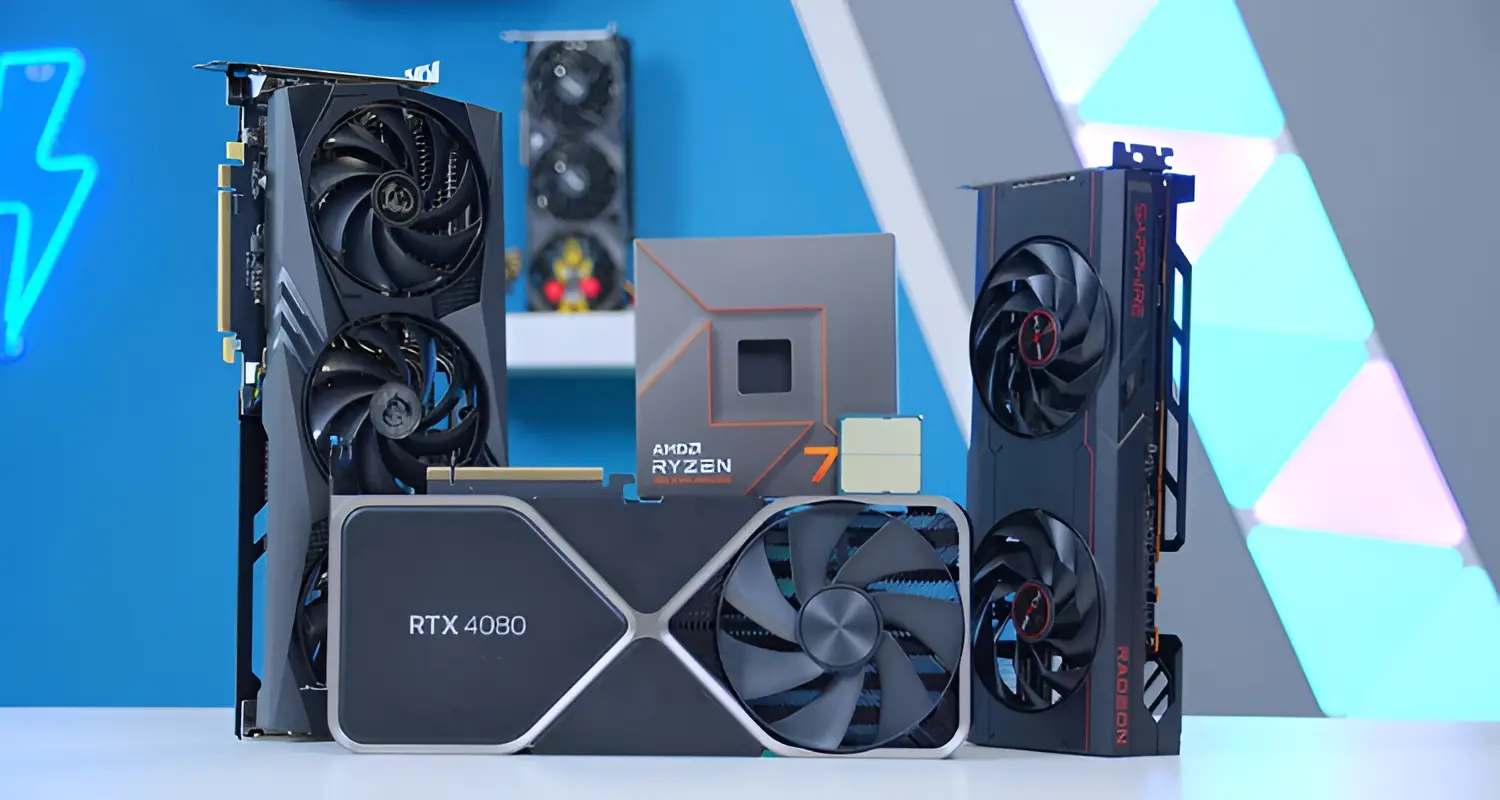
Nvidia, AMD and Intel design the GPU chip. Companies like ASUS, MSI, Gigabyte, Sapphire and others build the actual cards, and these are called board partners or AIBs.
Two cards with the same GPU name can differ in:
- Cooler size and design, which affects temperatures and noise
- Factory clock speeds, which can add a small performance boost
- Physical size, which affects whether it fits your case
- Power limits and connectors
- Price
- Warranty terms
For most buyers, the cooler quality and the price matter more than a small factory overclock. Read reviews that measure noise and temperature, not only FPS.
GPUs for Creative Work and AI
If you use your GPU for more than games, your priorities shift.
Video editing and streaming: Hardware encoders (like NVENC on Nvidia, or the media engines on AMD and Intel Arc) speed up exports and make streaming smoother. Check that your editing software supports the encoder you're buying.
3D rendering: Rendering engines often run faster on GPUs with strong compute power and lots of VRAM. Complex scenes can exceed the memory of smaller cards.
AI and machine learning: VRAM is often the limiting factor. Larger models need more memory, and many tools are built around CUDA, which is why Nvidia is common here. This is also where high-VRAM cards, including 24 GB and 32 GB models, start to make sense.
Real-World Examples
These examples show how the steps work together. They describe categories, not specific product endorsements, so check current prices and benchmarks before you buy.
Example 1: The 1080p esports player
Plays fast shooters on a 240Hz 1080p monitor. The main need is a high frame rate, so a strong CPU matters as much as the GPU. A mid-range card with 8–12 GB of VRAM is usually enough. Spending more on a 4K-class card would be wasted on this monitor.
Example 2: The 1440p all-rounder
Plays a mix of new AAA games at 1440p and 144Hz. A mid-range to upper-mid-range card with 12–16 GB of VRAM is a good target. Ray tracing is a bonus, so the buyer can weigh Nvidia and AMD by price and by the games they play.
Example 3: The 4K gamer and creator
Games at 4K and edits video. A high-end card with 16 GB or more of VRAM makes sense. This buyer should check the PSU and case carefully, because these cards are large and power-hungry. Nvidia's software support may tip the choice if the creative apps benefit from it.
Final Thoughts
If you're comparing specific models, check current prices and recent reviews first, because the GPU market moves quickly. Once you've narrowed your list with the checklist above, browse the graphics cards at iTech Devices and compare them against your resolution target, PSU and case size. If you're unsure about compatibility, our team can help you double-check before you order.
FAQs
How do I decide which GPU to buy?
Start with your monitor's resolution and refresh rate, then your budget and workload. Use benchmarks to find cards that hit your target FPS, then check VRAM, PSU and case compatibility. Pick the best value among the cards that pass every check.
How do I select which graphics card to use?
If you already have more than one GPU, such as integrated graphics and a dedicated card, plug your monitor into the dedicated card's ports. In Windows, you can set the preferred GPU for each app under Settings > System > Display > Graphics. Most laptops with two GPUs switch automatically, but you can override this in the graphics settings.
Should I get a 12 GB or 16 GB GPU?
For 1080p and moderate 1440p gaming, 12 GB is usually enough. For high-detail 1440p, 4K, or if you keep your card for many years, 16 GB gives extra room. Also compare raw performance, since a faster 12 GB card can beat a slower 16 GB one in most games.
Is 32 GB of VRAM overkill?
For gaming, generally yes. Very few games need that much. It's most useful for AI workloads, large 3D scenes and professional creative work, where big models or scenes can fill memory quickly.
How much VRAM do I need for 1440p?
Most guidance points to about 12–16 GB for comfortable 1440p gaming at high settings. Lower settings can work with less, but you may run into limits in newer games.
Is Nvidia better than AMD?
Neither is better in every case. Nvidia often leads in ray tracing, DLSS and creative or AI software support. AMD often offers more VRAM and strong gaming performance for the price. Compare the exact cards at your budget.
Can I use an old power supply with a new GPU?
Possibly, if it meets the recommended wattage and has the right connectors. But an old PSU may have worn components. If it's several years old or you're unsure about its quality, replacing it is a safer choice.
Will a new GPU work with my old motherboard?
Usually yes. GPUs are backward compatible with older PCIe versions. The performance cost is typically small, though some cards with fewer PCIe lanes may lose more on very old boards.