
 Quick Quote

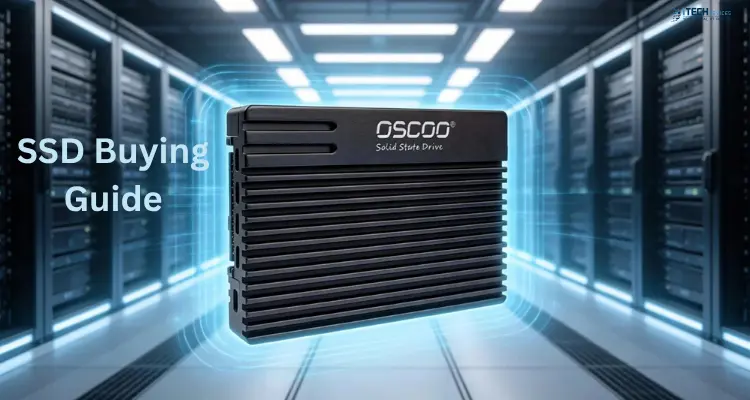


Buying an SSD sounds simple until you actually start comparing options. SATA, NVMe, M.2, PCIe Gen 4, TLC, QLC, DRAM cache, TBW — the terminology alone can make a straightforward upgrade feel complicated. And the confusion isn't just in your head. Even tech sites disagree on how many "types" of SSD actually exist, with some saying three and others saying four.
Here's the truth: SSDs aren't sorted into one neat list of types. They're classified by several different things at once — how they physically connect, what protocol they use, what memory chips are inside, and what job they're built for. Once you understand that, choosing the right drive becomes a lot easier.
This guide walks through the entire decision process in order: compatibility first, then specs, then capacity, then use case. By the end, you'll know exactly what to look for — and roughly what it should cost in the UAE.
Which SSD Should You Buy?
- Everyday laptop or office PC: A 500GB–1TB SATA or entry-level NVMe SSD
- Gaming PC: A 1TB–2TB M.2 NVMe SSD on PCIe Gen 4
- Video editing or content creation: 2TB or larger, high-endurance NVMe
- Older laptop or desktop: A 2.5-inch SATA SSD (check your device supports it first)
- Workstation or server use: High-TBW enterprise NVMe with capacity to match your workload
Step 1: Check Compatibility Before Anything Else
This is the step most buying guides skip, and it's the one that causes the most returns and refunds. An SSD can be the fastest drive on the market and still be completely useless if it doesn't physically fit your device.
Ask these three questions in order:
1. Does your device have an M.2 slot? If not, you're limited to 2.5-inch SATA drives (or a full-size PCIe card in a desktop with a free slot).
2. If yes, does that M.2 slot support NVMe? Some laptops only have M.2 SATA slots, which look identical to NVMe slots but run at SATA speeds. Buying an NVMe drive for an M.2 SATA-only slot means it either won't work or won't run at full speed.
3. What PCIe generation does the slot support? A PCIe Gen 5 SSD will still work in a Gen 3 or Gen 4 slot — it just runs at the slower speed the slot supports. You won't get your money's worth from a Gen 5 drive in an older laptop.
A simple compatibility decision tree looks like this:
- No M.2 slot ? 2.5-inch SATA SSD
- M.2 slot, SATA only ? M.2 SATA SSD
- M.2 slot, NVMe supported ? M.2 NVMe SSD (check PCIe generation for best performance match)
If you're not sure what your laptop or motherboard supports, check the manufacturer's spec sheet or open the laptop's service manual — this single check prevents almost every compatibility complaint.
Understanding SSD "Types"
Searches like "what are the 3 types of SSD" or "how many types of SSD are there" get inconsistent answers because SSDs are classified along several different dimensions, not one. Here's the clearer breakdown:
So when someone says "M.2 SSD," they're describing the shape. "NVMe SSD" describes the protocol. A drive can be both at once — most modern gaming laptops use M.2 NVMe drives. Meanwhile, a 2.5-inch drive can be either SATA or, less commonly, U.2 NVMe. Keeping form factor and protocol separate in your head is the single easiest way to shop with confidence.
SATA vs NVMe: The Core Comparison
SATA SSDs connect using the same SATA III interface as older hard drives, topping out around 550MB/s. They're affordable, extremely reliable, and compatible with almost any laptop or desktop built in the last decade. If your priority is a big storage upgrade without spending extra on speed you won't use, SATA is still a solid choice.
NVMe SSDs connect through the PCIe bus instead of SATA, which removes the speed bottleneck entirely. Depending on the PCIe generation, NVMe drives can hit anywhere from around 3,000MB/s (Gen 3) to over 12,000MB/s (Gen 5) — many times faster than SATA. This matters for gaming load times, large file transfers, and video editing, but makes little difference for web browsing or office work.
Bottom line: if your workload is mostly typing, browsing, and light multitasking, SATA is more than enough. If you're gaming, editing large media files, or running demanding software, NVMe is worth the extra cost.
M.2 vs NVMe: Clearing Up the Confusion
This is one of the most misunderstood pairings in SSD shopping. M.2 is a physical connector shape — small and stick-like. NVMe is a communication protocol. They're often paired together, but they're not the same thing.
- An M.2 drive can run either SATA or NVMe, depending on the slot and the drive.
- An NVMe drive is almost always M.2 shaped in consumer devices, but enterprise NVMe drives can also come in 2.5-inch or U.2 form factors.
When you're shopping, check both the form factor listed (M.2, 2.5-inch) and the interface listed (SATA, NVMe) separately. A listing that says "M.2 NVMe SSD" is telling you both pieces of information at once.
PCIe Generations: Is Gen 5 Worth It?
PCIe generation determines the maximum speed ceiling for an NVMe drive:
- PCIe Gen 3: Around 3,500MB/s — fine for everyday computing and light gaming
- PCIe Gen 4: Around 7,000MB/s — the current sweet spot for gaming PCs and content creation
- PCIe Gen 5: Over 12,000MB/s — built for professional workloads, large dataset processing, and future-proofing high-end builds
For most buyers, PCIe Gen 4 offers the best balance of price and performance right now. Gen 5 drives run hotter, often need better cooling, and cost noticeably more for speed gains most everyday tasks won't actually use. Unless you're doing heavy video work or professional rendering, Gen 4 is the practical choice.
NAND Flash: TLC vs QLC
Inside every SSD, NAND flash chips store your data. The two most common types for consumer drives are:
- TLC (Triple-Level Cell): Stores 3 bits per cell. Better balance of speed, endurance, and cost. Good for a primary system drive.
- QLC (Quad-Level Cell): Stores 4 bits per cell. Cheaper per gigabyte and great for large capacities, but slightly slower sustained write speeds and lower endurance over time.
If the SSD will be your main drive running your operating system and applications, TLC is generally the safer pick. If you want maximum storage for media libraries, game installs, or backups at a lower cost, QLC does the job well.
Does an SSD Need DRAM Cache?
DRAM cache is a small amount of memory on the drive that speeds up how quickly the SSD can find and update file information. Drives with DRAM cache tend to perform more consistently, especially during large or sustained file transfers.
DRAM-less drives (which use a technique called HMB, or Host Memory Buffer, to borrow a bit of your system RAM instead) are cheaper and perform fine for typical everyday use, but can slow down noticeably during heavy, sustained workloads. If you're editing video or working with very large files regularly, a DRAM-equipped drive is worth the small price difference.
What Does TBW Mean, and Should You Care?
TBW stands for Terabytes Written — it's the manufacturer's estimate of how much data you can write to the drive over its lifetime before it's likely to wear out. It's a practical way to compare endurance between drives.
For context, a typical home user might write only a few hundred gigabytes per week, meaning even an entry-level SSD with a modest TBW rating will comfortably outlast several years of normal use. TBW becomes more important for workstation use, heavy video editing, or server drives that handle constant read/write cycles — in those cases, look for drives with a higher TBW rating relative to their capacity.
How Much Capacity Do You Actually Need?
This is one of the most common sticking points, especially the "512GB vs 1TB" debate. Based on current SSD pricing in the UAE, here's a practical breakdown by capacity:
- 120GB–250GB: Best for a basic Windows install or a secondary boot drive. The cheapest entry point into SSD storage.
- 500GB–512GB: The most popular size for everyday laptops — enough room for apps, documents, photos, and a modest number of games or media files.
- 1TB: A comfortable choice for gamers and heavier users who install multiple large games or keep sizable media libraries. In the UAE, 1TB SSD pricing typically runs from around AED 500 for basic internal drives up to roughly AED 1,500–3,000 for high-performance NVMe and premium portable models.
- 2TB and above: Suited to video editors, content creators, and workstation builds that need to store large project files without constantly managing space.
- 4TB and up: Reserved for heavy professional use, large media archives, or server-class storage needs.
Across the market, consumer SSD prices in the UAE generally fall between AED 173 and AED 1,500 depending on brand, capacity, and interface, while enterprise and server-grade NVMe drives can run well beyond that for high-capacity, high-endurance use cases.
SSD by Use Case
Common SSD Buying Mistakes to Avoid
- Buying an NVMe drive without checking the M.2 slot type. Not all M.2 slots support NVMe — confirm before ordering.
- Chasing the fastest PCIe generation without needing it. Gen 5 speeds are wasted on everyday tasks and cost more.
- Ignoring capacity growth. Game installs, photo libraries, and project files grow faster than most people expect — buy a little more than you think you need.
- Assuming all "types" mean the same thing. Form factor, interface, and NAND type are separate specs — check all three, not just one.
- Overlooking warranty and authenticity. Counterfeit or grey-market SSDs are a real risk; always buy from an authorized retailer with manufacturer warranty support.
Where to Buy Genuine SSDs in the UAE
If you're shopping in Dubai or anywhere else in the UAE, iTech Devices stocks SSDs across every category covered in this guide — internal 2.5-inch SATA drives, M.2 NVMe drives, external and portable SSDs, and USB flash-style SSDs — from trusted brands including Samsung, Kingston, Western Digital, Seagate, Crucial, Silicon Power, and Transcend.
Capacities range from budget-friendly 120GB drives right up to 4TB consumer options and high-capacity enterprise NVMe drives for servers and workstations. All products are genuine and backed by manufacturer warranty, with delivery available across Dubai, Abu Dhabi, Sharjah, and the rest of the UAE. If you're unsure which form factor or interface fits your device, iTech Devices' support team can help confirm compatibility before you order.
Final SSD Selection Checklist
Before you buy, run through this list:
- Confirm your device supports M.2 NVMe, M.2 SATA, or 2.5-inch SATA
- Match the PCIe generation to your motherboard or laptop, not just the fastest one available
- Decide TLC or QLC based on whether it's a primary drive or bulk storage
- Check DRAM cache if you do sustained, heavy file work
- Pick capacity based on realistic future use, not just current files
- Compare TBW if the drive will see constant read/write activity
- Buy from an authorized retailer with warranty coverage
Choosing the right SSD really comes down to answering three questions in order: what your device supports, how much performance you actually need, and how much storage your workload requires. Get those three right, and the rest of the decision — brand, price, and exact model — becomes much easier.
FAQs
Do I need PCIe Gen 5, or is Gen 4 enough?
For the vast majority of gamers and everyday users, PCIe Gen 4 offers excellent performance at a lower cost. Gen 5 is mainly worth it for professional workloads that genuinely use the extra bandwidth.
Does DRAM cache actually matter for normal use?
For everyday browsing and office work, DRAM-less drives perform just fine. DRAM cache becomes more noticeable during large, sustained file transfers or heavy multitasking.
Can I upgrade my laptop's hard drive to an SSD myself?
In most cases, yes. Check whether your laptop uses a 2.5-inch SATA bay or an M.2 slot, confirm the correct type, and the swap is usually straightforward — though it's worth checking your specific model's service guide first.
What SSD is best for gaming?
A 1TB to 2TB M.2 NVMe SSD on PCIe Gen 4 covers modern game sizes and gives noticeably faster load times compared to SATA drives.