
 Quick Quote

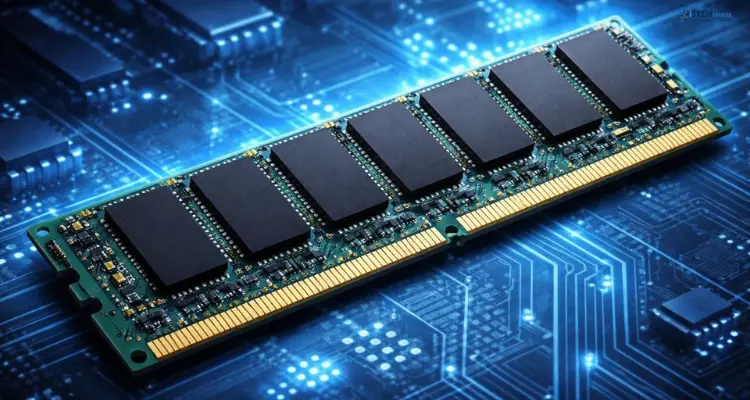


Buying RAM sounds simple until you're staring at a product page full of numbers — DDR5-6000, CL36, SO-DIMM, dual-channel kit — and none of it tells you whether the memory will actually work in your machine or make a real difference to how it runs.
This guide walks through RAM buying the way it should be approached: figure out what you actually need, confirm what your device can support, then choose the specific kit that fits both. By the end, you'll be able to walk into any listing and know exactly what you're looking at.
At iTech Devices, we get asked about RAM upgrades and compatibility more than almost any other component — it's one of the easiest specs to get wrong. This guide reflects what actually trips people up in practice, not just textbook definitions.
What RAM Should You Buy?
If you just want a fast recommendation:
- Everyday use (browsing, office work): 8GB works, but 16GB gives you breathing room
- Gaming: 16GB is the current sweet spot; 32GB if you stream or multitask heavily
- Content creation, video editing, or local AI work: 32GB minimum, 64GB for serious workloads
- Laptops: Check whether the RAM is upgradeable before buying anything — many modern laptops solder memory to the motherboard
- Desktops: Confirm your motherboard's supported DDR generation (DDR4 or DDR5) before choosing a kit
Now let's go through why these numbers matter, and how to check compatibility so you don't end up returning the wrong memory.
Why RAM Choice Isn't Just About Capacity
Most buying guides treat RAM shopping as picking a number — 8, 16, 32, 64GB — and calling it done. That's incomplete. RAM buying really comes down to two separate questions that get confused with each other:
- What RAM is compatible with your device (this is a hardware question)
- What RAM capacity and performance actually suits what you do with your computer (this is a workload question)
You can buy RAM that's perfectly fast and high-capacity, and it still won't boot if it doesn't match your motherboard's supported memory generation. So compatibility comes first — capacity and performance come second.
Step 1: How Much RAM Do You Actually Need?
RAM capacity determines how much active data your system can hold and work with at once. Run out, and your computer starts swapping data to slower storage, which is when things start to lag.
Here's a realistic breakdown by use case:
Why 16GB Has Become the Practical Minimum
A few years ago, 8GB was the standard recommendation. That's shifted. Modern operating systems, browsers with dozens of tabs open, and background apps all eat into available memory before you've even opened the program you actually want to use. For most people buying a new PC or laptop today, 16GB is the realistic starting point rather than the "extra" tier.
When 32GB Actually Matters
32GB isn't just for enthusiasts anymore. If you edit video, run virtual machines, work with large datasets, or experiment with local AI tools, 32GB gives you meaningful headroom rather than a marginal buffer.
The Emerging Case for 64GB: Local AI
This is worth calling out specifically because it's a newer consideration that older buying guides don't address. Running AI models locally on your own machine — rather than through a cloud service — is increasingly common, and memory is often the limiting factor. Larger local models need more RAM to load and run smoothly. If this is part of your workflow, 64GB stops being excessive and starts being a practical requirement.
Step 2: Identify Your Device Type
Before you can check compatibility, you need to know what kind of RAM your device physically accepts.
Desktop PCs Use DIMM Modules
Desktop memory comes in DIMM (Dual In-line Memory Module) format — the standard-sized memory sticks that slot into a motherboard. These are what most people picture when they think of RAM.
Laptops Use SO-DIMM — or Nothing You Can Upgrade
Laptops traditionally use SO-DIMM modules, a smaller, more compact version of DIMM designed to fit tighter spaces. But here's the catch many buying guides skip: a growing number of modern laptops, especially thin-and-light and premium models, solder RAM directly to the motherboard. Soldered memory can't be upgraded at all, no matter what specification you buy.
Before buying laptop RAM, check whether your model has upgradeable SO-DIMM slots or soldered memory. Manufacturer specification pages or a quick model-number search will confirm this. Buying a RAM kit for a laptop with soldered memory is a wasted purchase.
Step 3: Verify Compatibility (The Step Most Buyers Skip)
This is where most RAM purchase mistakes happen. Compatible RAM and appropriate RAM are two different things — compatible RAM is memory that will actually work in your system; appropriate RAM is memory whose capacity and speed suit your workload. You need both.
Three things determine compatibility:
1. DDR Generation
RAM is built around a DDR (Double Data Rate) standard, and each generation — DDR3, DDR4, DDR5 — is physically and electrically incompatible with the others. A DDR5 module will not fit into a DDR4 slot, and vice versa. Your motherboard (desktop) or system specifications (laptop) determine which generation you need. There's no flexibility here — this isn't a performance choice, it's a hard requirement.
2. Motherboard and CPU Support
Your motherboard has a maximum supported RAM capacity, a maximum supported speed, and a specific number of memory slots. Your processor also has a built-in memory controller that supports specific generations and speeds. Even if a stick of RAM physically fits, the system may not run it at its rated speed if your CPU or motherboard doesn't support it.
This is the single most common support question we see at iTech Devices — someone buys a great RAM kit that simply isn't supported by their board. A two-minute compatibility check before buying prevents almost all of these returns.
3. Form Factor
DIMM for desktops, SO-DIMM for laptops — mixing these up is a common and easy-to-avoid mistake, especially when shopping on sites that don't clearly separate the two.
The Fastest Way to Check: Use a Compatibility Tool
If you don't want to manually cross-reference specifications, most memory manufacturers and major retailers offer a memory finder or compatibility tool — you enter your device's make and model, and it returns matching, tested modules. This is genuinely the fastest and most reliable route if you're not confident reading motherboard specs yourself.
How to Check Your Current RAM
If you're upgrading rather than building new, check what you already have first:
- Windows: Task Manager ? Performance tab ? Memory shows current capacity, speed, and slots used
- macOS: Apple menu ? About This Mac ? Memory
- Third-party tools like CPU-Z also show detailed module information, including form factor and timings
Step 4: Understand Speed and Latency
Once compatibility is settled, speed and latency determine how RAM performs — but they matter less than capacity for most users, and they're often misunderstood.
RAM Speed (MT/s, sometimes labeled MHz)
RAM speed is technically measured in MT/s (megatransfers per second), though it's commonly labeled as MHz in marketing — these aren't identical measurements, but in practice you'll see both used interchangeably on product listings. Higher speed means more data can move per second, which mainly benefits tasks that are memory-bandwidth-sensitive, like gaming and content creation. For everyday use, speed differences are barely noticeable.
CAS Latency (CL)
Latency, shown as CL followed by a number (like CL36), measures the delay between a memory request and the response, in clock cycles. Lower CL numbers mean lower latency — but latency and speed interact, so a higher-speed kit with slightly higher latency can still outperform a slower kit with lower latency. Don't judge a kit on latency alone; look at both together.
XMP and EXPO: Why Advertised Speeds Aren't Automatic
This trips up a lot of first-time buyers: the speed printed on the RAM box is often not what it runs at by default. Motherboards typically run memory at a conservative baseline speed unless you enable a profile — XMP (Intel systems) or EXPO (AMD systems) — in the BIOS/UEFI settings. Without enabling this, your expensive high-speed kit may run well below its rated speed.
Step 5: Choose the Right Configuration
Single-Channel vs. Dual-Channel
Modern motherboards support dual-channel memory, which lets the system access two RAM modules simultaneously, roughly doubling available memory bandwidth compared to a single module of the same total capacity. This is why two 8GB sticks generally outperform one 16GB stick in the same system.
1×16GB vs. 2×8GB — Which Should You Buy?
This is one of the most practical, underexplained questions in RAM buying. Two matched 8GB sticks running in dual-channel will typically outperform a single 16GB stick, especially in gaming and tasks that lean on memory bandwidth. If your motherboard has multiple slots (most do), buying a matched pair is usually the better choice over a single module of equal total capacity.
Can You Mix RAM Modules?
Technically, sometimes — but it's not recommended. Mixing different capacities, speeds, or timings can force all your RAM down to the lowest common speed, and mismatched modules occasionally cause stability issues. Buying a matched kit (modules sold together, tested as a pair) avoids this entirely.
Step 6: Know Where to Install It
Motherboards label their RAM slots, and installing modules in the wrong pair of slots can prevent dual-channel from working even if everything else is correct. A common labeling scheme is A1/A2/B1/B2 — for a two-module dual-channel setup, your motherboard manual will specify which two slots to use (often A2 and B2, but always check your specific board's manual, since this varies by manufacturer).
RAM for Specific Use Cases
Gaming
For gaming, 16GB is currently the practical standard, with 32GB recommended if you stream, run Discord, browser tabs, and a game simultaneously. Speed matters more for gaming than for general use, particularly on systems with integrated graphics, which borrow system memory for graphics processing.
Laptops
Beyond checking for soldered memory, laptop buyers should also confirm maximum supported capacity — many laptops cap out lower than desktops due to motherboard design constraints.
Content Creation and Video Editing
Video editing, especially at 4K or with multiple tracks, benefits heavily from higher capacity — 32GB is a reasonable working minimum, with 64GB useful for professional workflows.
Development and Virtual Machines
Running multiple virtual machines or containers multiplies your memory needs quickly, since each VM reserves its own chunk of RAM. 32GB is a comfortable starting point for regular VM use.
Local AI Workloads
As mentioned earlier, this is a genuinely newer consideration. Running AI models locally rather than through the cloud is memory-intensive, and larger models need proportionally more RAM to load and operate smoothly — often 32GB to 64GB depending on model size.
Common RAM Buying Mistakes to Avoid
- Buying the wrong DDR generation — always confirm DDR4 vs. DDR5 before purchasing
- Ignoring form factor — DIMM and SO-DIMM are not interchangeable
- Buying laptop RAM without checking upgradeability — soldered memory can't be replaced
- Assuming higher speed always means better performance — capacity matters more for most users
- Buying a single large stick instead of a matched pair — you're leaving dual-channel performance on the table
- Not enabling XMP/EXPO — your RAM may be running below its rated speed
- Ignoring motherboard capacity limits — check the maximum RAM your board actually supports before buying more than it can use
Final RAM Buying Checklist
Before you buy, confirm:
- Your workload's realistic capacity requirement (8/16/32/64GB)
- Whether your device is a desktop (DIMM) or laptop (SO-DIMM, and whether it's upgradeable at all)
- Your supported DDR generation (DDR4 or DDR5)
- Your motherboard/CPU's maximum supported capacity and speed
- Whether to buy a matched dual-channel kit rather than a single module
- That you've checked a compatibility tool or QVL list if you're unsure
Shop RAM Kits at iTech Devices
Ready to buy? Here's a look at RAM modules currently available through iTech Devices, spanning DDR4 and DDR5, desktop and server-grade memory. Most of these are RDIMM/ECC modules suited for servers and workstations rather than standard gaming rigs — if you're building or upgrading a home gaming PC, look for the DIMM/Non-ECC options below (Corsair Vengeance kits) rather than the registered/ECC modules.
Still unsure which RAM fits your setup? iTech Devices can help you match the right kit to your exact device — feel free to reach out with your model number, and we'll point you in the right direction.
FAQs
How much RAM do I need for gaming, 16GB or 32GB?
16GB is sufficient for most current games on their own. 32GB becomes worthwhile if you regularly multitask alongside gaming — streaming, Discord, browser tabs, or background recording software.
Do I need 32GB or 64GB of RAM for gaming?
For gaming specifically, 32GB already covers the vast majority of use cases. 64GB is generally excessive for gaming alone and is better justified by content creation, heavy virtualization, or local AI work running alongside it.
Should I install RAM in A1/B1 or A2/B2?
This depends on your specific motherboard — check your manual, since slot labeling and the recommended dual-channel pairing vary by manufacturer. Installing modules in the wrong slot pair can prevent dual-channel mode from activating even though the system still boots.
Is DDR5 worth it over DDR4?
DDR5 offers higher bandwidth and is the current-generation standard, but it isn't a simple upgrade decision — it depends entirely on what your motherboard and CPU support, since the two generations aren't interchangeable.
Can I mix different brands or capacities of RAM?
You can in some cases, but it's not recommended. Mismatched modules can force lower speeds across all your RAM and occasionally cause instability. A matched kit avoids these issues.